Grab Our Blinkie

Groups We Love

Certified

Lifetime Member

Favourite Blogs


Showing posts with label Tamandya. Show all posts
Showing posts with label Tamandya. Show all posts
Friday, April 4, 2014
**Cluster Frame - Easter Glow**
More freebies for all of you today!!!
Brand new cluster frame I made using stunning

**Please do not share file or download link.
Link it back to my blog.
Do not add elements from other kits
or claim it as your own.
Thank you**
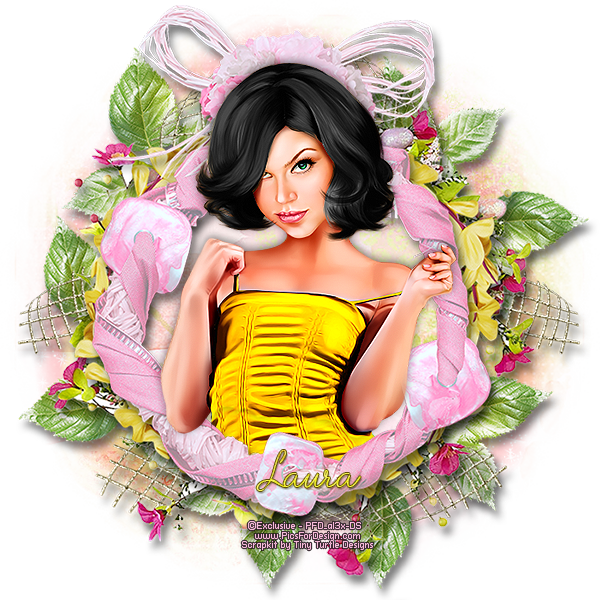
And another tag I did using the same kit.

-xoxo al3x-

Sunday, March 9, 2014
**CT PTU TUTORIAL - Morning Chat**
-nick.png)
*This tutorial is written by me using Photoshop CS6 but any version will work.
Any similarity to any other tut is coincidental.*
Supplies:
Tube of choice. I'm using the artwork of Tamandya.
You must purchase a license to be able to use his work.
Kit of choice. I'm using PTU kit 'Morning Chat'
Mask of choice. FM4
Font of choice. Great Vibes
Let's get started...
Open new canvas 600x600.
From the kit past Frame_1c and place it at the center with Drop
Shadow, Opacity 50%. Under it add Paper #4, resize a little and
Flip Horizontal. On the paper past 2 copies of Element #22, no
shadow. Click on the frame layer. At the frame right side past
Element #20 with shadow. Then add Element #9 at the top right frame
corner, shadow. On it place Elements #51, #38b, #36 (x2) and #5
in that order with shadow on all. At the bottom of the frame place
Element #45, resize to be bigger and shadow. Now add 3 copies of
Element #29 at the right side and 2 small copies of Element #5
under them, shadow on all. Then place Elements #21 and #47 at the
bottom of those with shadow on both. In the canvas center, little
more to the top, past Element #42b with shadow. At the frame left
side add Element #29, shadow. On it place Element #48. Decorate
the tree with some flowers, I used Element #5. Then select all
flowers and tree and Convert to Smart Object, add Drop Shadow now
with Opacity on 50%. At the tree branch place Element #7, resize
and shadow. Then past Element #35 and place it at the bottom left
side, with shadow. On it add Element #9, shadow. Now place Element
#53 at the bottom of it with shadow. At the frame bottom left side
past Element #6, shadow. On it add Elements #47, #52 (x3), #50 (x2)
and #26 in that order with shadow on all. Now at the frame bottom
right side place Element #6, shadow. Right from it add Element #47
and Element #1 at the bottom of it, with shadow on both. Left from
the element 6 place another copy of Element #47, shadow. On it
past Elements #52 (x3), #50 and #26 in that order with shadow on all.
Then place Element #11 on the pots, shadow. Now add full size tube.
Make a copy of it. On the original tube layer add Drop Shadow 60%.
On the tube copy layer set Blend Mode to Screen, Opacity 50% and
add filter Gaussian Blur on 5,0 pix. Place Element #2 then, shadow.
On it add Element #21 with shadow. Past 4 copies of Element #1, with
shadow (fallow my tag to see where to place them). Cover the canvas
bottom with 2 copies of Element #46b, shadow on both.
Now let's add mask:
Open your mask as new image.
Mask layer will be called 'Background' and will be locked.
Double click on same layer, press OK. Layer name will be 'Layer 0'.
Add a new layer above it and flood fill with color of choice,
or use a paper from kit. I use Paper #12.
Click on mask layer and hold CTRL+A to Select All, CTRL+C to Copy.
Click on the paper layer, hit Q to turn on Quick Mask mode.
CTRL+V to paste the mask. It should now be kinda red.
Hit Q to turn off Quick Mask mode
and there should be shown selection on your canvas.
Hit the Add Layer Mask.
On paper layer, right click and Convert to Smart Object.
Right click again and Rasterize Layer.
Drag completed mask to your tag canvas as the bottom layer.
Resize it if needed.
Add proper copyright and your name on tag.
Hide or delete bottom 'Background' layer. And save your tag as .PNG file.
-dee.png)
That's it! Thank you for reading. I would love to see any tags made with this tutorial. You can past the link here as comment or send them to me on al3x_v@ymail.com

Wednesday, February 26, 2014
**CT PTU TUTORIAL - Beautiful Garden**
-nick.png)
*This tutorial is written by me using Photoshop CS6 but any version will work.
Any similarity to any other tut is coincidental.*
Supplies:
Tube of choice. I'm using the artwork of Tamandya.
You must purchase a license to be able to use his work.
Kit of choice. I'm using PTU kit 'Beautiful Retro'
Mask of choice. FM2
Font of choice. Hemmet
Let's get started...
Open new canvas 600x600.
From the kit past Frame 1, Flip Horizontal and place it at the center,
little more to the right side. Drop Shadow - Opacity 40%, Distance 3,
Size 4. Now go down and click 'background' layer. Past Paper #2,
resize it and place behind the heart whole. Add the tube, right click
on layer and Create Clipping Mask. Set Opacity on 45%. Then make a
copy of that layer and set Opacity to 100% and Blend Mode on
Lighten, add filter Gaussian Blur. At the botom left side place
Element #38, shadow. On it place 3 copies of Element #14 with shadow
on all. Then add Elements #18 and #19 with shadow. On the frame
right side add Element #12, shadow. Then click on the first
element we added, frame 1. On it past Elements #23 and #28 with
shadow on both (place them at the bottom frame rose). Next to them
add 2 copies of Element #23 and 1 copy of Element #12, shadow.
On them past Element #16, shadow. On there, but more at the canvas
bottom, rotate and place Element #15 with shadow. Then place
Elements #46 and #23 on it, with shadow. Now at the bottom left,
where we already have some element, add Element #38, shadow.
On the top left side, next to the frame, past Element #12 with
Drop Shadow - Opacity 40%, Distance 3, Size 4. On it place Elements
#49 (rotate) and #16, shadow on both. Then add another copy of
Element #12 on it, shadow. Then past Element #16 (flip horizontal),
#49 (rotate) and #16 with shadow on all. Next to those place full
size tube with Drop Shadow - Opacity 55%, Angle 180, Distance 3,
Size 4. At the bottom, on the tube right leg, place Elements #36
and #16 with shadow on 40%.
Now let's add mask:
Open your mask as new image.
Mask layer will be called 'Background' and will be locked.
Double click on same layer, press OK. Layer name will be 'Layer 0'.
Add a new layer above it and flood fill with color of choice,
or use a paper from kit . I use Paper #3.
Click on mask layer and hold CTRL+A to Select All, CTRL+C to Copy.
Click on the paper layer, hit Q to turn on Quick Mask mode.
CTRL+V to paste the mask. It should now be kinda red.
Hit Q to turn off Quick Mask mode
and there should be shown selection on your canvas.
Hit the Add Layer Mask.
On paper layer, right click and Convert to Smart Object.
Right click again and Rasterize Layer.
Drag completed mask to your tag canvas as the bottom layer.
Resize it if needed.
Add proper copyright and your name on tag.
Hide or delete bottom 'Background' layer. And save your tag as .PNG file.
-cat.png)
That's it! Thank you for reading. I would love to see any tags made with this tutorial. You can past the link here as comment or send them to me on al3x_v@ymail.com

Tuesday, February 11, 2014
**CT PTU TUTORIAL - Love Garden**
-nick.png)
*This tutorial is written by me using Photoshop CS6 but any version will work.
Any similarity to any other tut is coincidental.*
Supplies:
Tube of choice. I'm using the artwork of Tamandya.
You must purchase a license to be able to use their work.
Kit of choice. I'm using PTU kit 'Spring Harmony'
Template of choice. 505mpm
Mask of choice. WSL_Mask84
Font of choice. Andantino script
Let's get started...
Open template. Hide or delete 'cr' layer. Now go to the last layer
and also hide or delete layers 1 and 2. Click layer 3 and from the
kit past Paper #32. Right click on the paper and Create Clipping Mask.
Now past Element #78 and place at the top right side with Drop Shadow,
Opacity 40%. Make a copy of it, Flip Horizontal and place on the left
side. Place Element #61 then on the left side, shadow. On it add
Element #58. Using Eraser Tool remove extras then shadow on 40%.
Select the last 2 elements and make a copy of them. Flip Horizontal
and place at the right side. On the left side place Element #73 and
on it Element #39. Drop Shadow on both. Click on the layer 4 then
and from the kit past Paper #29 to Create Clipping Mask. I used
pattern on the paper to spice it up a little. If u decide to do that,
then your pattern have to be transparent and Blend Mode set to Soft
Light. For the layer 5 Create Clipping Mask with Paper #6. Now past
full size tube, don't resize it, Flip Horizontal and place on the
oval. CC mask for tube as well and filter or effect of choice.
Then from the kit past Element #62, rotate and place on the left
oval side. Make a copy of it, Flip Horizontal and place on the
right side. Make another copy of that element, rotate and place at
the top center on oval. Using Eraser Tool remove some flowers.
Add shadow on all 3 copies then, Opacity 40%. On the oval, next
to the tube, place Element #7, shadow. On it add Element #58 with
shadow. At the bottom of it place Element #34 with shadow. On it
add Element #35, shadow. At the canvas bottom left side past
Element #17. Make a copy of it, Flip Horizontal and place at the
right side, shadow on both. On those two add Element #77 on both
sides with shadow. Then add 2 copies of Element #46 at the bottom,
shadow on both. On those past Element #65, no shadow. Also add 2
copies of Element #76 on left and right side, shadow. Then at
the bottom right place Element #36, shadow. On it past Element #21
with shadow on 40%. At the bottom left side place Element #41 and
on it add Element #35, with shadow on both. Now click on the
layer 7 and then place full size tube at the right side, with
shadow on 55%. For the layer 8 use some yellow style
and for the 9 and 10 use green.
Now let's add mask:
Open your mask as new image.
Mask layer will be called 'Background' and will be locked.
Double click on same layer, press OK. Layer name will be 'Layer 0'.
Add a new layer above it and flood fill with color of choice,
or use a paper from kit . I use Paper #7.
Click on mask layer and hold CTRL+A to Select All, CTRL+C to Copy.
Click on the paper layer, hit Q to turn on Quick Mask mode.
CTRL+V to paste the mask. It should now be kinda red.
Hit Q to turn off Quick Mask mode
and there should be shown selection on your canvas.
Hit the Add Layer Mask.
On paper layer, right click and Convert to Smart Object.
Right click again and Rasterize Layer.
Drag completed mask to your tag canvas as the bottom layer.
Resize it if needed.
Add proper copyright and your name on tag.
Hide or delete bottom 'Background' layer. And save your tag as .PNG file.
-laura.png)
That's it! Thank you for reading. I would love to see any tags made with this tutorial. You can past the link here as comment or send them to me on al3x_v@ymail.com
Sunday, December 1, 2013
**CT TAMANDYA - Vanessa**
Once again I'm showing off my new CT tags.
It's tube 'Vanessa' by Tamandya

This tub comes in 5 different color
layers with close up.

-xoxo al3x-

Thursday, November 14, 2013
**CT TAMANDYA - Carolina**
Hey everyone :)
Today I'm showing off my new CT tags.
It's artwork by Tamandya.

This stunning tube comes in layers.
Different hair and cloths color options and with
or without piercings.

-xoxo al3x-

Subscribe to:
Posts
(Atom)
Alex CT For


Marilyn CT For
Check Me!
AD Service
Marilyn AD Service
If you have more questions, or interested in purchasing the product contact me via dina.gaco@hotmail.com; or FACEBOOK Dina Marilyn ...

Favourite Stores